
Report Summary Image Export
Overview
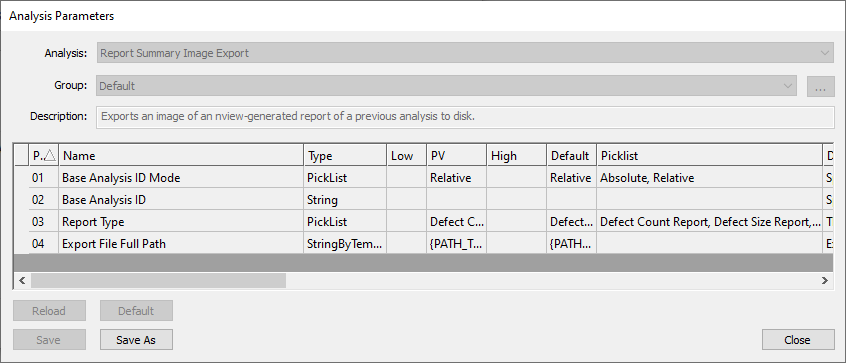
The Report Summary Image Export allows users to automatically export reports as PNG images by adding the Report Summary Image Export as part of a Group Analysis. This analyzer is meant to automate the process of opening up an analysis result, choosing the type of report to view, and exporting the selected report.
This analyzer must be used with a Base Analysis (i.e. must be used with a previous analysis), and can be used to export the following report types: Defect Count Report, Defect Size Report, Image Property Report, Defect Classification Report, Flatness Report.
The export file path can be customized with string templates using the Export File Full Path parameter. For more on available string templates, refer to Export File Full Path Parameter.
Export Compatibility
Note that not all report types are compatible with all types of analyses.
For example, an Image Property Report can only be exported following a Surface Scattering Analysis, and a Defect Classification Report can only be exported following an analysis that includes defect classification, for example, after an AI Analysis. The selected Report Type must be appropriate for the analysis that it follows, otherwise the Report Summary Image Export will not have the correct data or analysis to generate the selected report from.
The quickest way to understand what report types are available for a given analysis is to view analysis results (nSpec Main View > Analysis > View Analysis Results…) and see what reports are available to view in nView. The example below shows the available report options for a Device Inspection Analysis.
