
Cropped Images Analysis
Overview
Cropped Images analysis is a nSpec analysis that allows users to crop images of defects found in completed analyses, which makes it particularly useful at the end of many workflows. Additionally, it is a helpful tool for generating images for training Defect Classification models.
Parameters
There are a number of Cropped Images analysis parameters that are dependent on other parameters. For example, for the Image Output Limit Method parameter, if the Percentage method is selected, the Image Output Limit Number parameter is ignored. Similarly, if the Absolute Number method is selected, the Image Output Limit Percentage parameter is ignored.
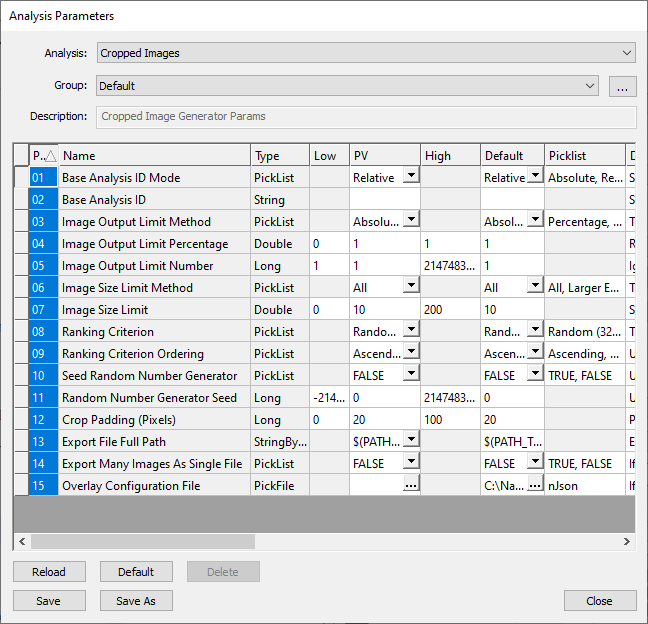
Base Analysis
Users should select a base analysis to perform the defect cropping on, using standard nSpec Post-Analysis Referencing.
Image Output Limit Method
There are a few methods that can be used to execute a Cropped Images analysis – Percentage, Absolute Number, Greater of Both, and Lesser of Both. These methods are used to determine how many defects are cropped and exported.
Percentage
The Percentage method crops a percentage of defects. The percentage is input as a decimal via the Image Output Limit Percentage parameter. The default value is 1, which will crop all defects.
Absolute Number
The Absolute Number method crops a user-specified number of defects. The number is specified by the Image Output Limit Number parameter.
Greater of Both
The Greater of Both method will evaluate the Image Output Limit Percentage and Image Output Limit Number parameters and pick the option that results in the greatest number of cropped defects.
Smaller of Both
The Smaller of Both method will evaluate the Image Output Limit Percentage and Image Output Limit Number parameters and pick the option that results in the smallest number of cropped defects.
Image Size Limit Method
The Image Size Limit Method filters which defects to crop by defect size, and has three options: All, Larger Equal, and Smaller Equal. This parameter is set in conjunction with the Image Size Limit parameter, which sets the defect size to filter by in µm2.
If set to All, there will be no filtering of defects by size. If set to Larger Equal, only defects that have an area that are larger than or equal to the specified defect size will be cropped. If set to Smaller Equal, only defects that have an area that are smaller than or equal to the specified defect size will be cropped.
Ranking Criterion
The Ranking Criterion parameter defines how defects will be selected to be cropped. There are two options – Random or Bounding Box Area.
If Random is chosen, the defects to be cropped will be chosen at random. The random generator can be seeded by setting the Seed Random Number Generator parameter to TRUE and setting the Random Number Generator Seed parameter to any desired seed value.
If Bounding Box Area is chosen, the defects to be cropped will not be chosen at random. Instead, the defects will be sorted by bounding box area and cropped in either descending or ascending order. This order is set by the Ranking Criterion Ordering parameter. For example, if set to descending order, the defects will be cropped starting with the defect with the largest bounding box area.
Crop Padding (Pixels)
Refers to the amount of padding to use when cropping the defect, and defaults to 20 pixels.
Export File Full Path
Users can dynamically name export files using string templates via the Export File Full Path parameter. More information about specific string templates that can be used for Cropped Images analysis can be found at Export File Full Path Parameter.
Export Many Images As Single File
If true, will export cropped defects as a single, multi-page file with defect overlays. If false, cropped defects are individually exported.
Overlay Configuration File
Overlay Configuration File is an optional parameter for Cropped Images Analysis, which allows users to apply a customizable overlay to exported images. The parameter input type is a nJson file.
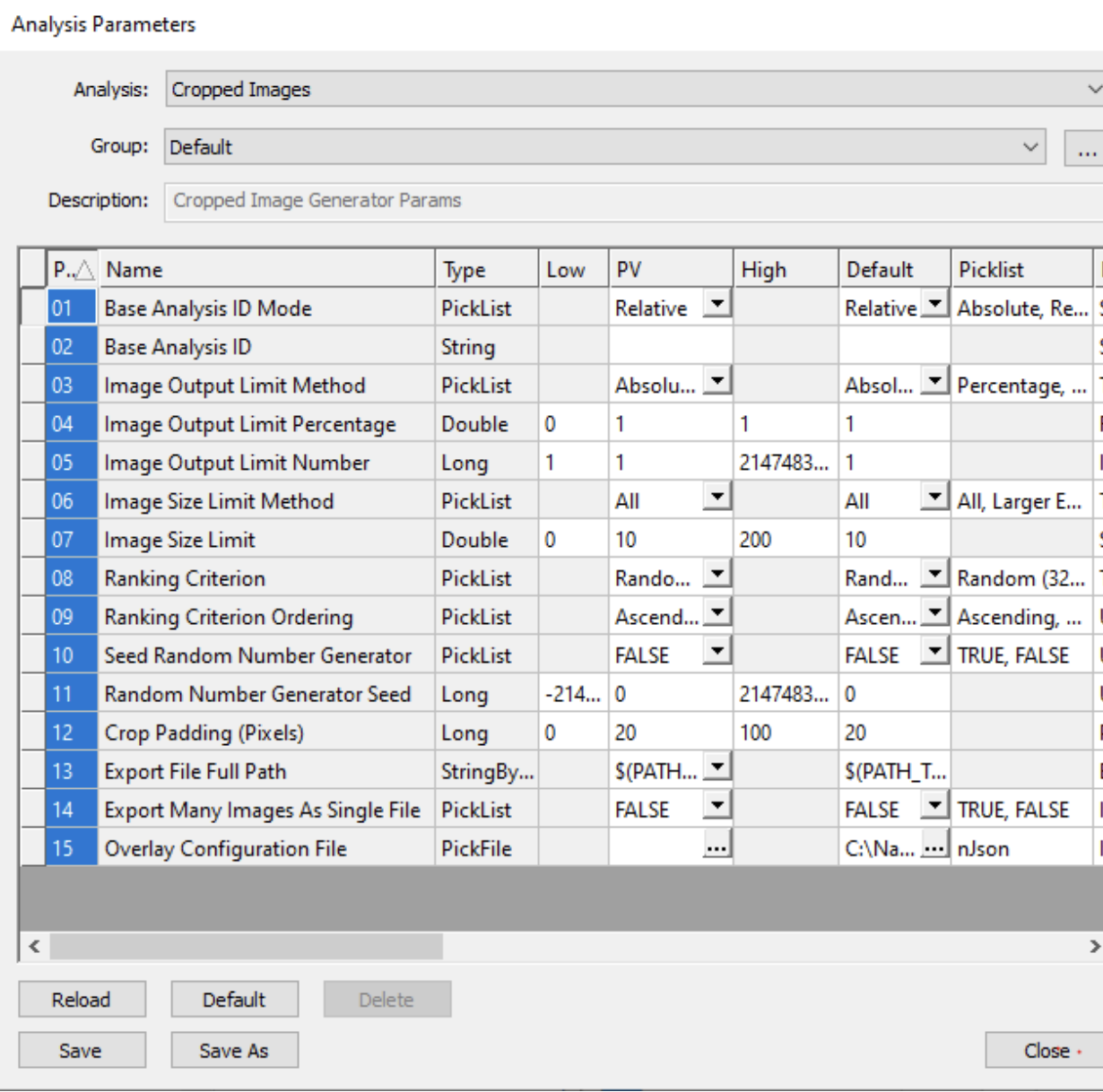
Below is an example nJson file for the Overlay Configuration File parameter.
{
 "Overlay Setting" :
 {
  "semver": "1.0.0",
  "viewport_dimensions": {
    "rows": 150,
    "output_width" : 512,
    "columns": 150
  },
  "background_color": "#666666",
  "sidebar_parameters": {
    "text_line_vertical_padding": 6,
    "text_line_horizontal_padding": 5,
    "sidebar_text_scale": 1,
    "sidebar_text_color": "#FFFFFF",
    "sidebar_width": 450,
    "sidebar_position": "left"
  },
  "scale_section_parameters": {
    "bar_top_padding": 10,
    "bar_height": 25,
    "bar_bottom_padding": 10,
    "horizontal_padding_between_label_and_bar": 10,
    "horizontal_padding_between_bar_and_edge_of_section": 10,
    "scale_bar_color": "#EEEEEE",
    "scale_section_justification": "right",
    "scale_bar_label_parameters": {
      "scale_label_text_color": "#FFFFFF",
      "scale_label_text_scale": 0.8,

  "vertical_padding_between_bottom_of_label_text_and_bottom_of_section
  ": 10
  }
 }
 }
}
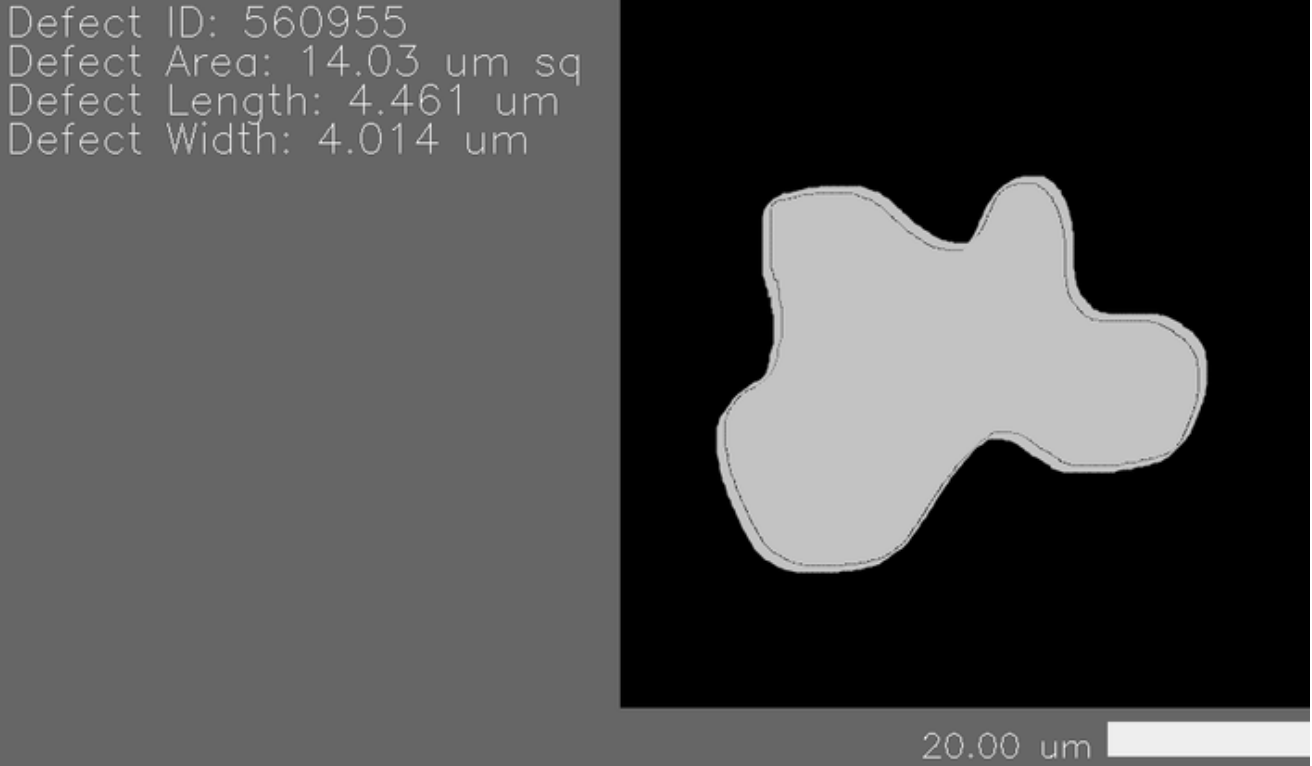
The above Overlay Configuration File produces the following cropped defect image with overlay. The cropped defect image dimensions, background color, sidebar defect information, and scale and their relative placements are all fully customizable.
semver is shorthand for semantic version, and refers to the version of the defect overlay schema used. Required.
viewport_dimensions sets the size of the viewport containing the cropped defect. Required.
background_color is the background color for the viewport, only used if the viewport size is larger than the cropped defect tile size. Required.
sidebar_parameters sets the size, font formatting, padding, and relative position of the image overlay sidebar, which contains defect information, including the ID, area, length, and width. Required.
scale_section_parameters sets the size and padding for the image overlay scale bar. Optional.