Sample Naming
Overview
The Scan section of Scan Settings contains fields for Sample ID, Scan Folder, Sub Folder, and Lot ID. These files can be named either dynamically or statically.
When scanning from a cassette, naming can also be used to modify scan behavior, e.g. skipping certain wafers in a cassette.
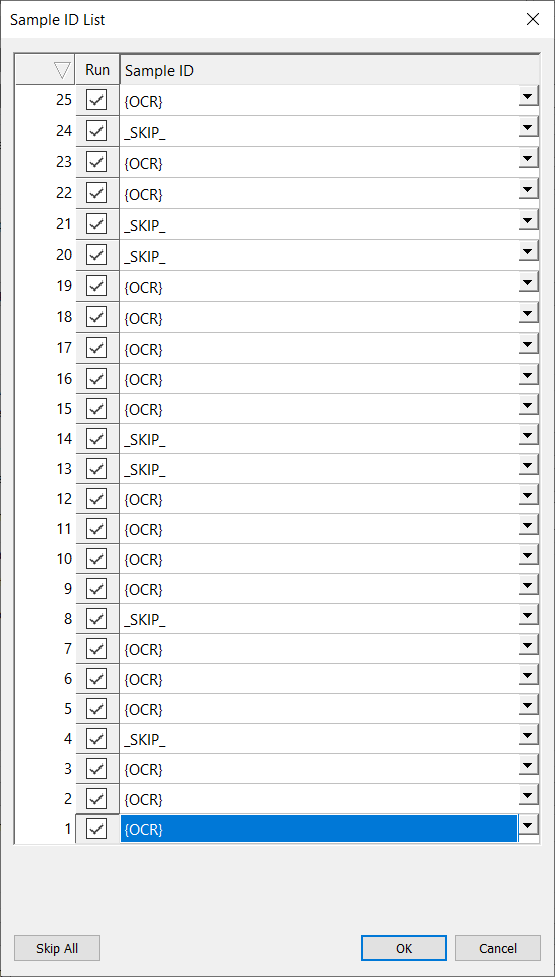
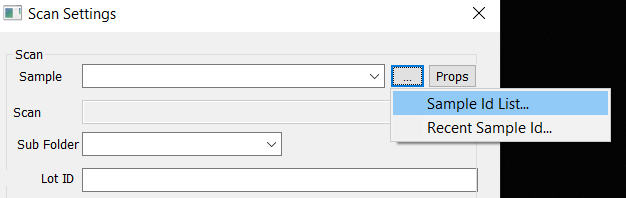
There is built-in utility to assist in naming samples in a cassette. This can be accessed at Scan Settings in the Scan section > … > Sample ID List…
Feature Changelist
There have been a few breaking changes in the past few versions that affect sample naming.
Version | Change Description |
|---|---|
nSpec v0.24.1.0 | Prior to this version, when running a scan with an autoloader and OCR reader, the scanned OCR ID would always be appended to the Sample ID. This behavior was deprecated in v0.24.1.0 because of the introduction of string templates for sample naming. Deprecation Workaround: Any workflows relying on this behavior and using blank sample ID names need to make changes to their jobs by using 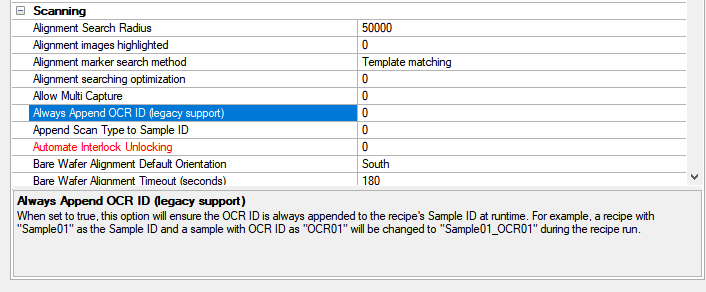 |
nSpec v0.23.0.0 | When running cassette jobs on nSpec PS systems prior to v0.23.0.0, naming a sample with a semi-colon Deprecation Workaround: Naming a sample |
String Templates
String templates can be used to dynamically name the sample ID and subfolder fields in the Scan Settings dialog.
Below are all the string templates that can be used in Sample ID or Sub Folder field naming.
Variable Name | Description |
|---|---|
DATETIME | The time at the moment when the scan name is set. Output format: For example, |
ILLUMINATION | The abbreviated illumination modality for the active image settings group during scanning: Brightfield (BF), Darkfield (DF), Differential Interference Contrast (DIC), and Transmitted (TX). For example, when running a scan in brightfield, |
JOB_NAME | Name of current job |
LOT_ID | Name of Lot ID |
MACHINE_NAME | Name of machine ( |
OBJECTIVE | The active objective in use during the scan |
OCR | The value read from the OCR camera |
SKIP | When used in the multi-sample input dialog, this skips the target slot. Note: This behaves identically to |
SLOT | The slot that the wafer was pulled from in the autoloader. If slot information was not available for any reason, this will output “00”. Note: Values will be output with a preceding 0 if the slot number is less than 10. |
Sample ID List Utility
The Sample ID List utility assists in naming samples for a cassette scan. The utility is located at Scan Settings in the Scan section > … > Sample ID List…
Each cassette slot can be skipped by toggling the Run checkbox to be unchecked, or choosing Skip All to skip all slots. Additionally, slots can be named with string templates using each Sample ID’s dropdown menu.
Clicking OK will automatically fill in the Scan Setting’s Sample field with the formatted string constructed from the Sample ID List. The following example would generate this string in the Sample field, starting with slot 1 and ending with slot 25:
{OCR};{OCR};{OCR};_SKIP_;{OCR};{OCR};{OCR};_SKIP_;{OCR};{OCR};{OCR};{OCR};_SKIP_;_SKIP_;{OCR};{OCR};{OCR};{OCR};{OCR};_SKIP_;_SKIP_;{OCR};{OCR};_SKIP_;{OCR}