
Multi-Type Device Inspection Workflow
Overview
nSpec supports scanning patterned wafers with multiple device types in a single scan. This article will walk through how to create a multi-device layout using the Create Device Layout dialog.
Note that in this workflow, the devices must be the same shape and size, otherwise, users with samples with devices of different sizes will need to run a scan and create a unique device layout for each device type.
Prerequisites
Prior to creating any device layout, you must create in the following order:
Image settings group
Autofocus group
North-south-origin alignment
Layout Creation
After creating and gathering all prerequisites, navigate to nScan - Stage View > Scan > Create Device Layout.
For general guidance on creating a device layout, see Create Device Layout. We recommend reading this article first before continuing this guide if you have never created a device layout before.
Create a layout as you would with a single type device layout, measuring the die and pitch and generating a layout using either rectangular or circular extrapolation.
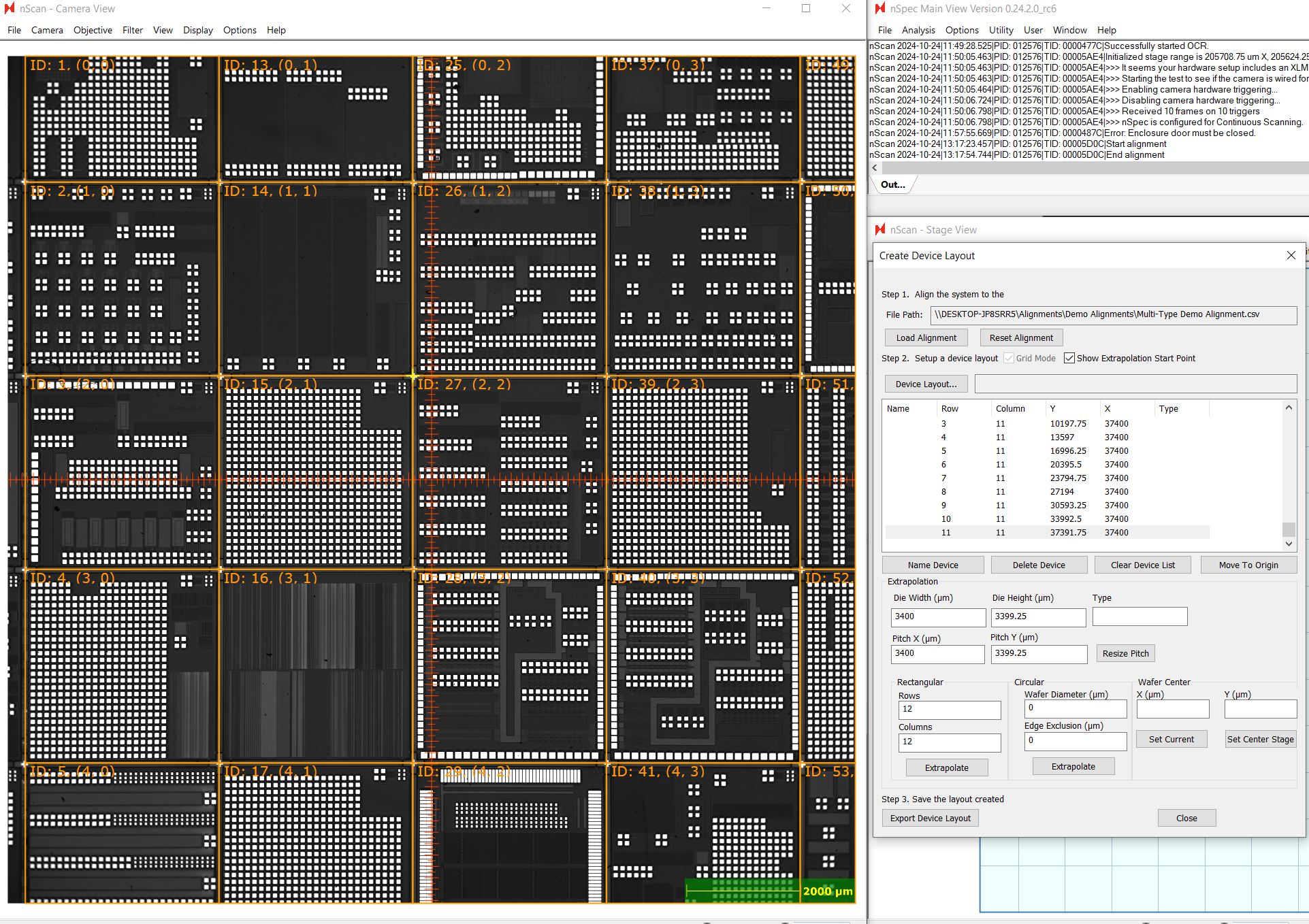
When finished, Export Device Layout, then open the resulting CSV file.
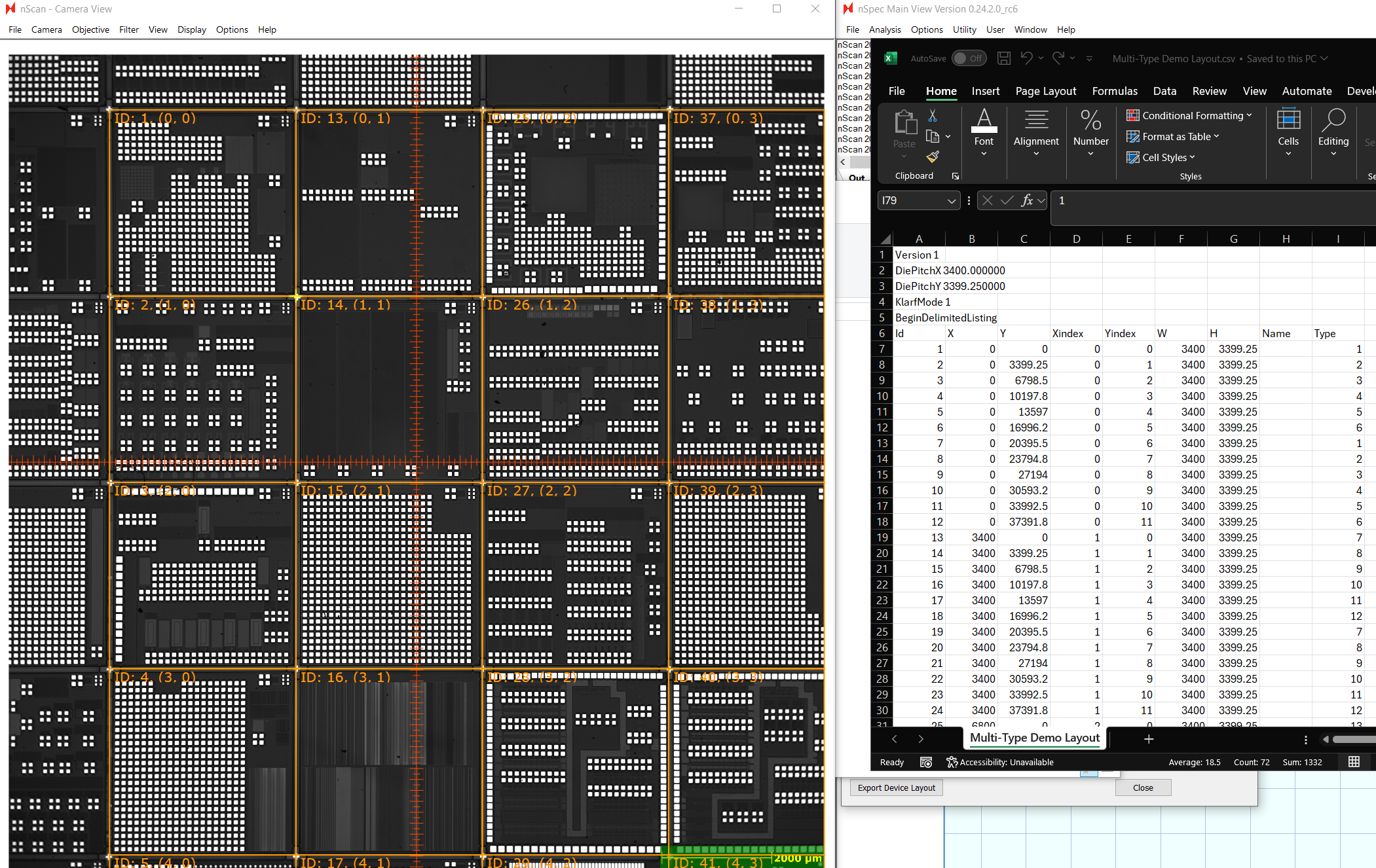
Create a column named “Type”. Assign each device to a number representing its device type. We recommend using a 1-based index for type. In this example, there are 36 different types of devices, so we will use 1-36 to indicate the 36 device types.
The X, Y columns represent the location of each device on the stage relative to the origin selected in the alignment file. The Xindex and Yindex represent the device’s position in units of devices, also relative to the origin. The Xindex and Yindex of each device can be seen in the nScan - Camera View.
Scan Setup
The last step is setup the device inspection scan. Setting up a multi-type device scan is almost identical to the procedure described in Device Inspection Analysis, with some small changes.
First, all devices types will be scanned and analyzed, unless using the Device Type Filter parameter for Device Inspection.
If you’d like to analyze just a subset of device types, you can input a regular expression in the Device Type Filter to indicate which types should be analyzed. The regular expressions should follow ECMA-262 regex patterns. For example, ([1-9]|1[0-8]) would analyze device types 1-18.
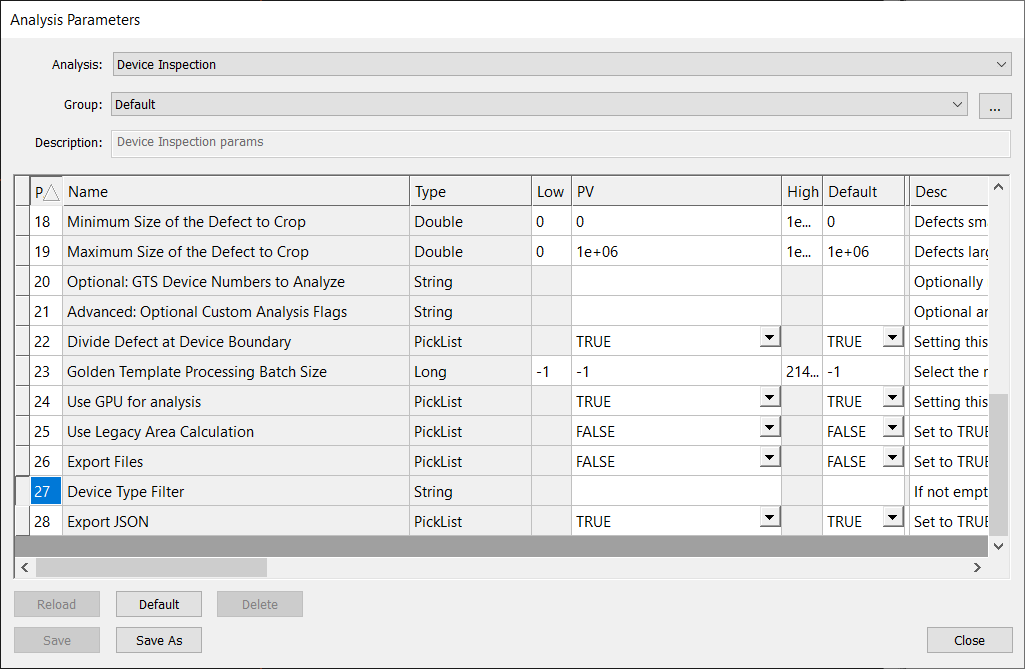
Note, that you cannot use both the Device Type Filter and Optional: GTS Device Numbers to Analyze parameters. Using both will cause the analysis to fail.
Previously, Optional: GTS Device Numbers to Analyze enabled a more difficult multi-type device workflow which required users to enter in every device ID to be analyzed, instead of using types.