Exporting Data
After running a successful analysis, there are several ways of exporting and processing the data obtained.
Manual Export
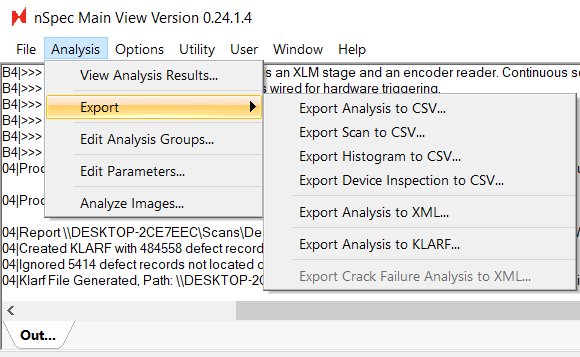
Users can quickly export to CSV, XML, and KLARF formats by exporting from nSpec - Main View > Analysis > Export. Note, that Export Analysis to KLARF… does not export KLARF files with defect images.
Read more about customizing KLARF exports at KLARF Export Properties.
In order to obtain cropped defect images, users should additionally perform a Cropped Images analysis. Details for performing a Cropped Images analysis can be found at Cropped Images Analysis .
Automatic Export
Users can enable automatic exporting by enabling a program option. The Automatic program option can be found under the Reporting Export subsection. The remaining options should be set based on the desired report type (.CSV, .XML).
The following image shows an example of an automatic CSV file export setting.

Custom Export
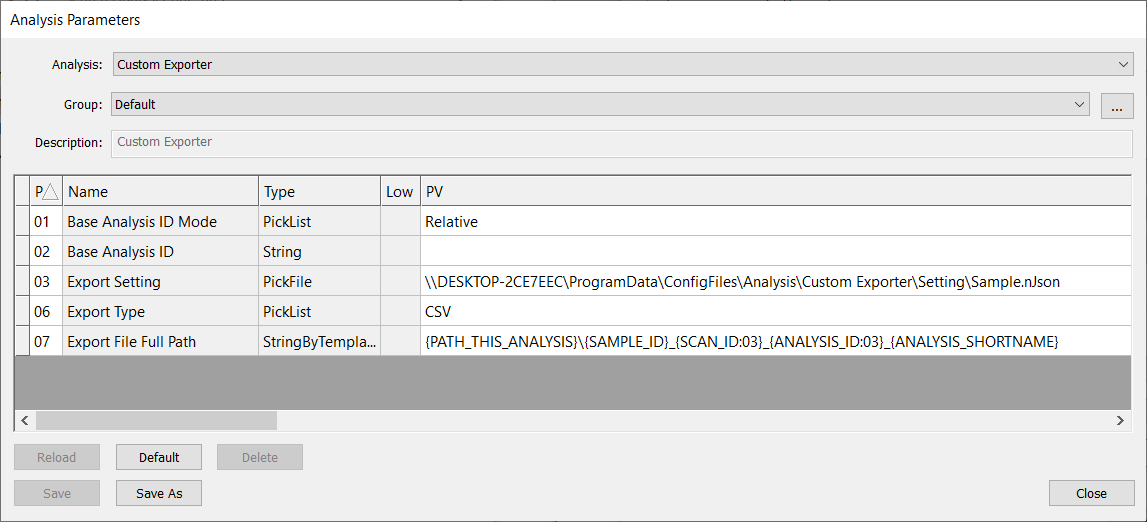
For more flexible exporting options, users can fully customize exports, including custom headers, file format, and extensions, using the Custom Exporter analysis. Custom Exporter’s functionality relies on an input nJson script. The nJson file must be written and configured by Nanotronics Technical Service or Applications Engineers. To request a new custom exporting application that may require assistance, please contact support@nanotronics.ai to request support. To read more about Custom Exporter, see Custom Exporter .